

Event QR Code RSVP: How to Print a QR Code Invitation Guests Can Scan
Turn any printed invitation, poster, or slide into a one-scan RSVP that builds your guest list.
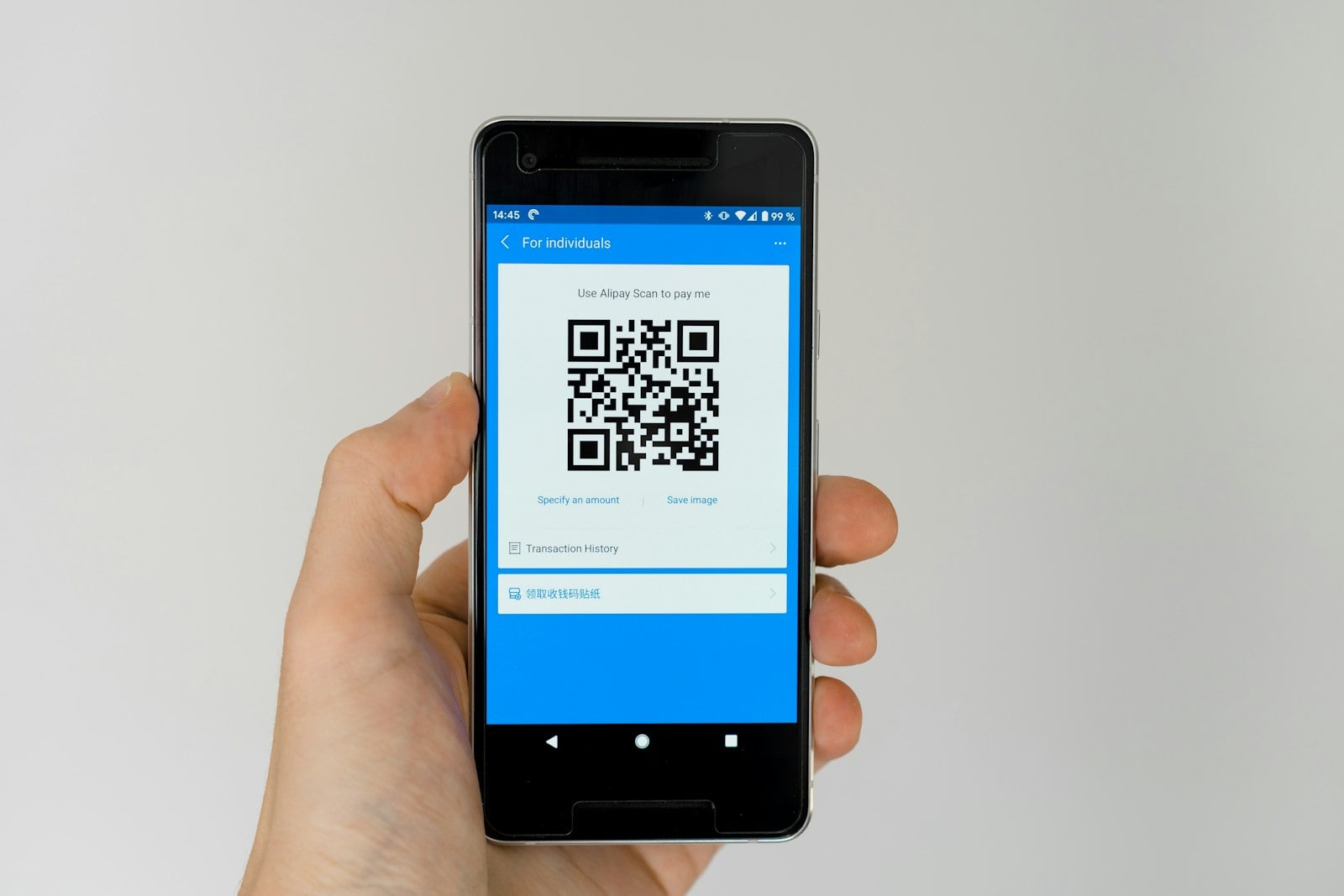
An event QR code RSVP lets guests scan a code on a printed invitation, poster, or slide and reply on their phone in seconds. Instead of typing a long link, they get your event page and reply form straight away, and every answer goes into one guest list. With Convide.Online you can create an event with a built-in RSVP, print its QR code, and keep track of confirmations as they come in. It is free for up to 20 confirmed guests.
QR codes link paper and digital. A printed card still feels personal, and the code means nobody has to post back a reply card or type a URL from a photo. This guide shows how to set up a QR code RSVP, how to print it so it scans reliably, and how to plan arrival on the day, including general advice on QR code event check-in.
What is an event QR code RSVP?
An event QR code RSVP is a QR code that opens your online invitation and RSVP form. Guests point their phone camera at it, tap the link, and see the event details: date, time, address, and any notes. Then they confirm whether they are coming.
It works anywhere you can print or display an image:
Printed invitations for relatives and formal guests
Save-the-date cards and table cards
Posters and flyers in an office, school, or community space
Slides at the end of a meeting or webinar
Email signatures or newsletters, where the link sits next to the code
The QR code is just a quicker way to open the same invitation. If a guest gets the link by email or message instead, their reply still ends up in the same list.
Step 1: Create your event with RSVP built in
Start with the event, not the code. On Convide.Online, create a new event and fill in:
Event name, date, and time
The address (guests can open it in Google Maps with one tap)
A short message with dress code, schedule, or parking notes
Whether guests can bring companions, which you can switch on or off for each event
If you designed your invitation artwork in Canva, link it to the event so guests see your design and the RSVP form in one place. For a walkthrough of that workflow, see our guide to a Canva online invitation with RSVP.
Step 2: Choose between an open code and named invitations
Before you print anything, decide who should be able to reply:
Open QR code. Anyone who scans can reply. This suits public or semi-public events: an office party poster, a community fair, a kids' class birthday where you are happy for parents to share the code.
Named invitations. Each guest or household gets an invitation addressed to them. This suits weddings, seated dinners, and anything with a per-head cost, because you control exactly who is invited.
Whichever you choose, Convide checks for duplicate replies, so a guest who scans twice and replies twice does not inflate your headcount.
Step 3: Print your QR code invitation so it scans every time
A QR code that does not scan is worse than no code. Follow these printing basics:
Size. Print it at least 2–2.5 cm (about 1 inch) square on invitations, and much larger on posters people will scan from a distance.
Contrast. Dark code on a light background. Avoid putting it over a photo or a busy pattern.
Quiet zone. Leave a clear white margin around the code; do not let text or borders touch it.
Finish. Matte paper scans better than glossy paper under bright lights.
Call to action. Add one line next to it, such as "Scan to RSVP by 15 May".
Backup link. Print a short version of the link underneath for anyone whose camera struggles.
Always test before printing in bulk. Scan a proof with at least two different phones, one iPhone and one Android if you can, in normal indoor light.
Step 4: Share the same RSVP by link too
Not every guest will see the printed card. Send the same invitation through the channels people actually use:
Email for colleagues and formal guests
SMS for relatives who prefer plain text messages
Messaging apps such as WhatsApp for close friends and family groups
Social media if you are using an open invitation and want a wider reach
The printed code and the shared link go to the same event, so you never have to merge two lists.
Step 5: Track replies and download your guest list
As guests scan and reply, confirmations appear in your guest list. That makes chasing easier: a week before your reply-by date, look at who has not answered and send a short personal reminder with the link.
When the caterer, venue, or office manager asks for numbers, download the guest list as a PDF, sorted for easy review. Print a copy for the door too. It is the simplest way to greet people by name.
QR code event check-in: practical advice for the day
Many people searching for "QR code event check-in" want to know how to handle arrival as well as replies. Here is general advice that works for most events, whatever tools you use:
Keep a printed guest list at the entrance. A PDF list sorted by name lets a helper tick people off quickly, even without Wi-Fi.
Put someone friendly in charge. One person on the door who knows the key guests makes arrival smoother than any gadget.
Display the RSVP QR code at the venue for walk-ins at open events, so late deciders can still register before they come in.
If you need ticket-style scanning for a conference or paid event, check that your chosen tool offers it, and test the full flow with a few colleagues before the doors open.
Plan for dead phones. Always have a printed list to look up guests by name.
Practical examples
Wedding. Leila and Marcus print formal invitations for 80 guests, with a small QR code on the back and the line "Scan to RSVP by 1 June". They use named invitations, so each household's reply is tied to its name, and companions are turned on only for guests who were offered a plus-one. Younger friends get the same invitation by message. Two weeks out, they download the PDF list for the caterer.
Corporate event or conference. An operations manager plans an end-of-year team dinner and a half-day internal conference. She puts the QR code on the last slide of the all-hands meeting and on a poster by the coffee machine, and emails the link to remote staff. Companions are switched off. On the day, a printed alphabetical list at reception speeds up arrival.
Birthday party. A parent planning a 7th birthday adds a QR code to printed cards handed out at school. Parents scan, see the address in Google Maps, and confirm how many children are coming. With fewer than 20 confirmed guests, the whole thing stays free. For more birthday tips, read how to track birthday party RSVPs for free.
Frequently asked questions
How do I make a QR code for an event RSVP?
Create your event on an RSVP platform that generates a printable QR code, such as Convide.Online, then download the code and add it to your invitation design. Scanning it opens the event page and reply form.
Can I print a QR code on a paper invitation?
Yes. Print it at least about 2.5 cm square, in dark ink on a light background with a clear margin, and test it with a couple of phones before printing the full batch.
Do guests need an app to scan an RSVP QR code?
Usually not. Most modern smartphone cameras recognise QR codes and open the link directly in the browser.
Is an event QR code RSVP free?
On Convide.Online, events with up to 20 confirmed guests are free. Larger guest lists can be unlocked with a one-time paid plan based on the number of guests.
What is the difference between a QR code RSVP and QR code event check-in?
A QR code RSVP collects replies before the event: guests scan to say whether they are coming. QR code event check-in happens at the door, where arrivals are scanned or ticked off. Many small events only need the RSVP plus a printed guest list at the entrance.
Can people reply without scanning the code?
Yes. Share the same invitation by email, SMS, social media, or messaging apps. Every reply goes into the same guest list.
Conclusion: set up your event QR code RSVP today
An event QR code RSVP keeps the charm of a printed invitation without the hassle of chasing paper replies. Create the event, decide between an open code and named invitations, print a code that scans reliably, share the same link digitally, and keep a downloadable guest list ready for the day.
Ready to try it? Create your event on Convide.Online. It is free for up to 20 confirmed guests.